

 Store
Store- Home
- Product
Wireless Intercom Wireless Microphone Shotgun Microphone Audio Interface&Mixer Studio Microphone Handheld Microphone Wired Microphone Accessories
View All
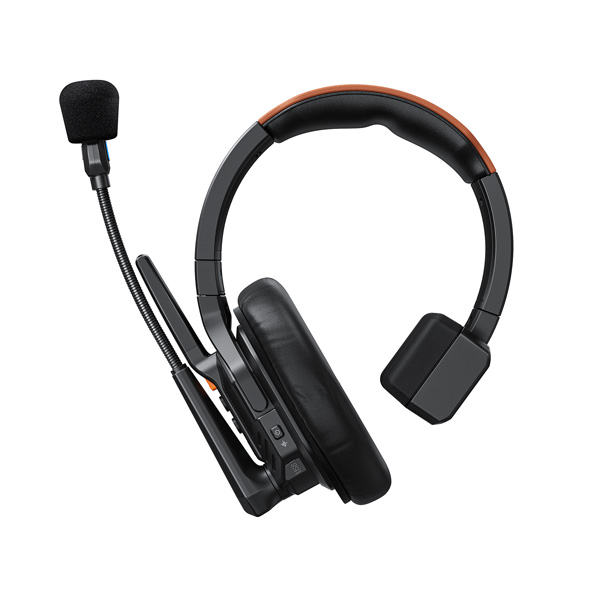
-
Seekcom S1
Wireless Intercom Headset System(2.4G Ver.)
View All
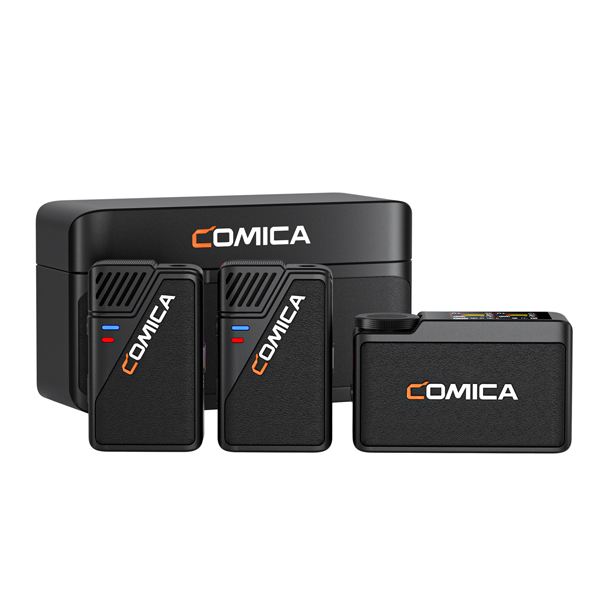
-
BooMax
2.4G 32-bit Float Internal Recording Wireless Microphone
-
Vimo Q
Four-channel Mini Wireless Microphone
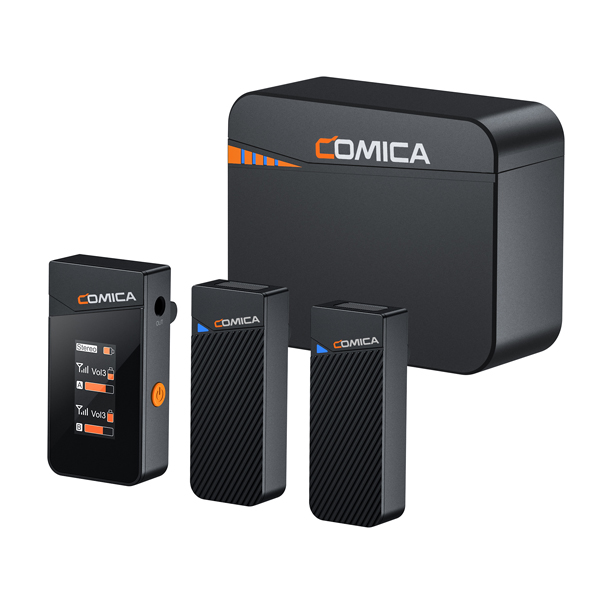
-
Vimo C
2.4G Dual-channel Mini Wireless Microphone
-
Vimo S UC
2.4G Dual-channel Mini Wireless Microphone
View All
-
VP3
Super Cardioid Condenser XLR Shotgun Mic
-
VM40
Super Cardioid Dual-Channel Wireless Shotgun Microphone
-
VM30
2.4G Super Cardioid Condenser Wireless Shotgun Microphone
-
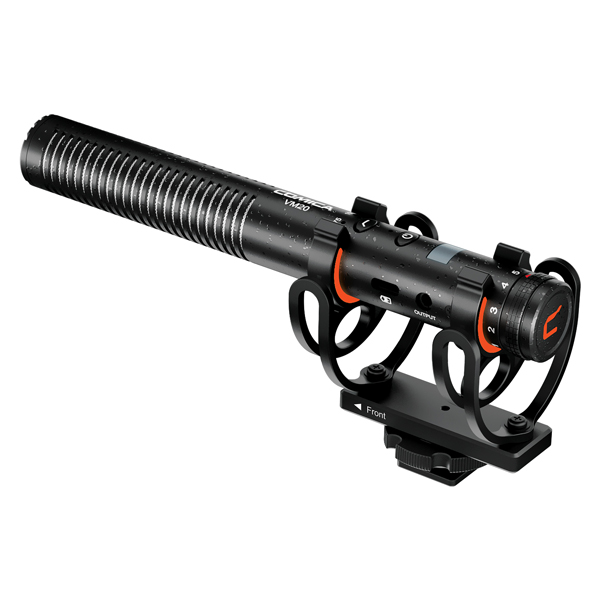
VM20
Multi-Functional Super Cardioid Condenser Shotgun Microphone
View All
-
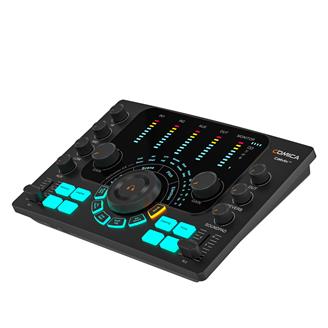
ADCaster C2
Podcasting/Recording/Streaming Multi-functional Audio Interface
-
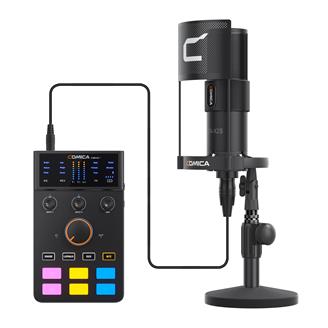
ADCaster C1-K1
Streaming/Podcast Audio Kit
-
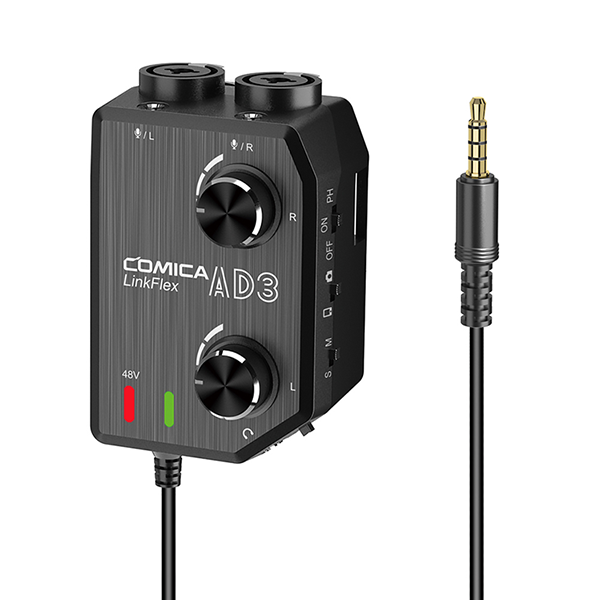
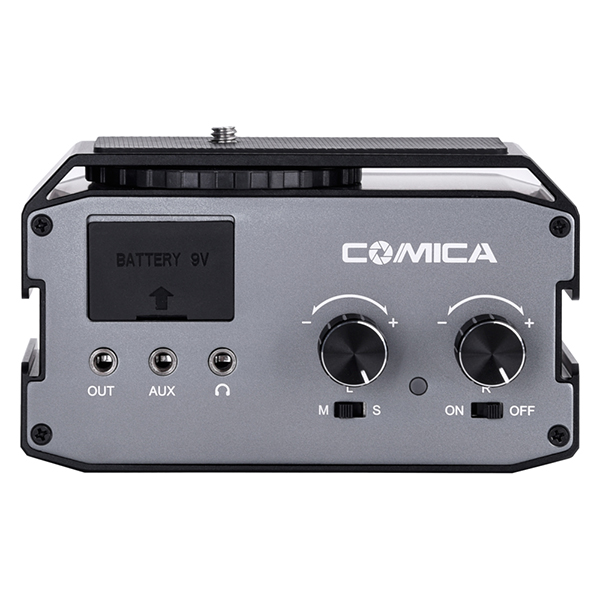
LinkFlex AD3
Two-channels XLR / 3.5mm / 6.35mm Audio Preamp Mixer / Adapter / Interface for Camera and Smartphone
-
AX3
XLR/6.35mm/3.5mm(2-Groups) Audio Mixer
View All
-
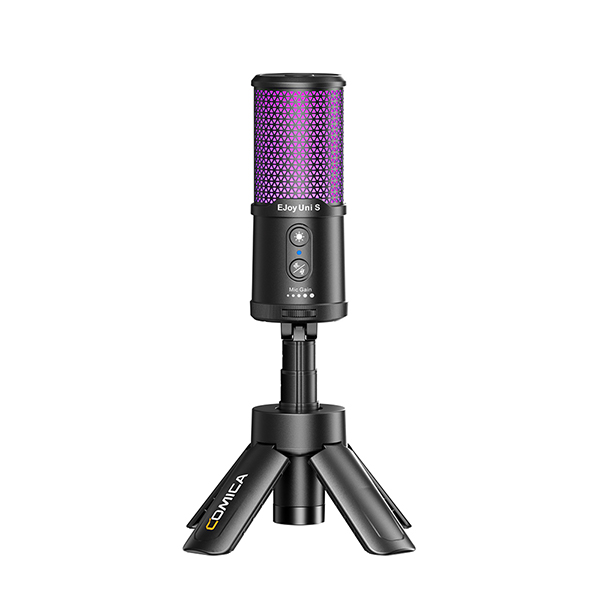
EJoy Uni S
RGB Cardioid Condenser USB Microphone
-
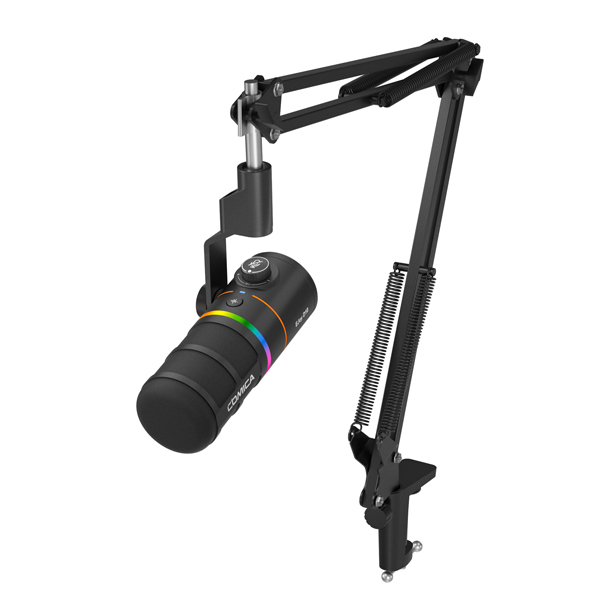
EJoy D10
RGB Cardioid Dynamic Microphone
-
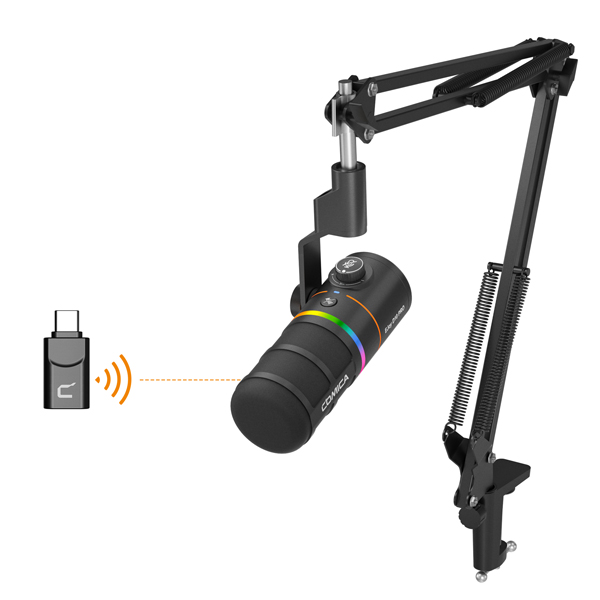
EJoy D10 PRO
RGB Cardioid Dynamic Wireless Microphone
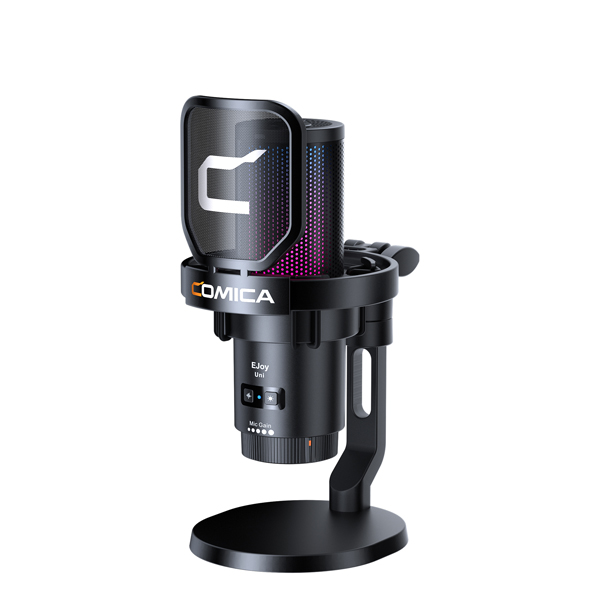
-
EJoy Uni
RGB Cardioid Condenser USB Microphone
View All
.jpg.jpg)
-
Revo S
Wireless Reporter Microphone for Smartphone
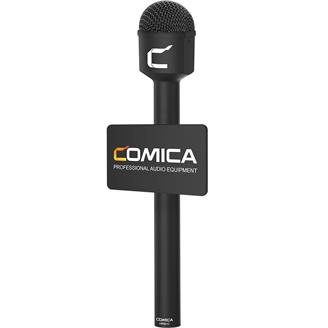
-
HRM-C
Omnidirectional Dynamic Reporter/Interview Microphone
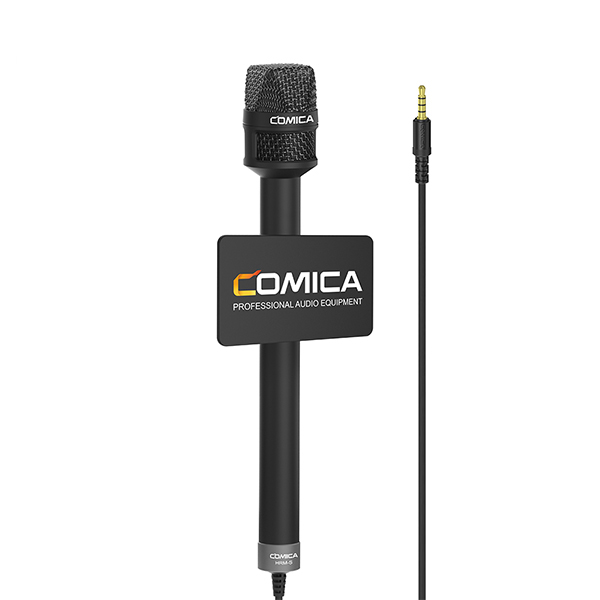
-
HRM-S
Reporter/Interview Microphone for Smartphone
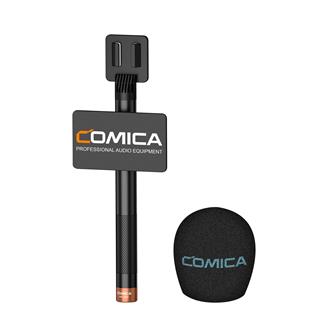
-
HR-WM
Handheld Adapter for Wireless Microphone
View All
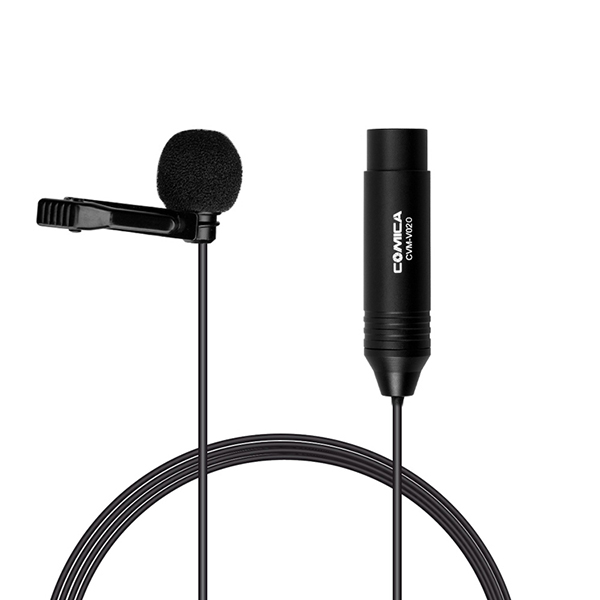
-
V02O
XLR 48V Phantom Power Lavalier Microphone

-
V02C
XLR 48V Phantom Power Lavalier Microphone
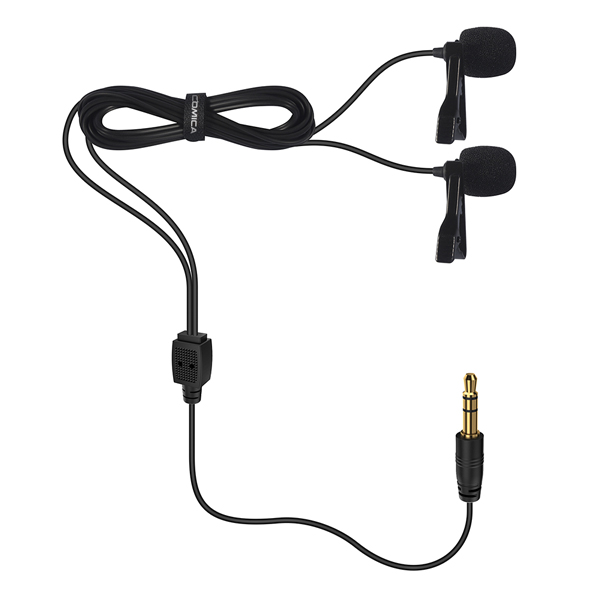
-
D02
Dual-head Lavalier Microphone for Camera, Camcorder, Smartphone, GoPro
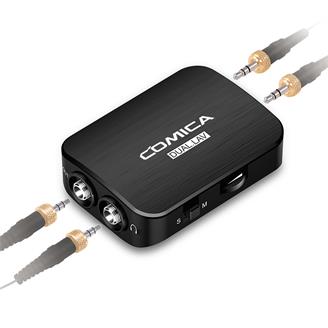
-
DUAL.LAV D03
Dual-head Detachable&Multi-functional Lavalier Microphone (For Camera, Smartphone)
- Support
- Contact Us
- Explore
- Where To Buy
- App
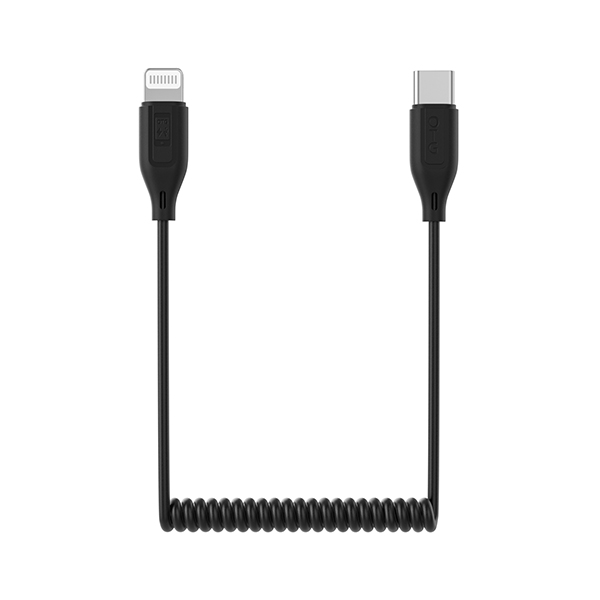
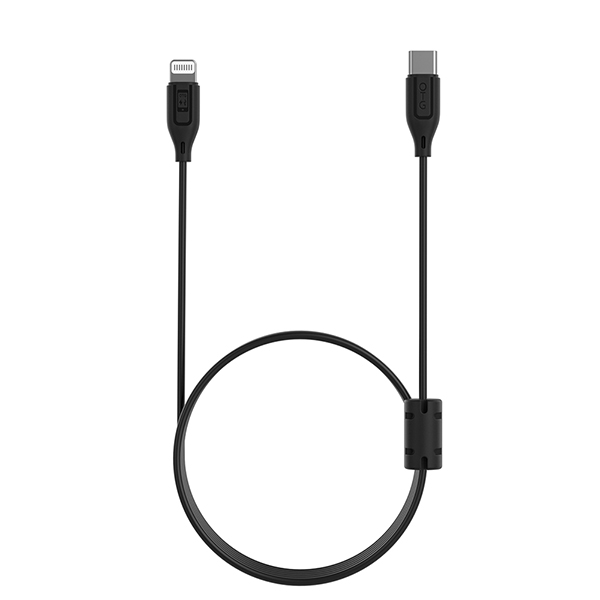





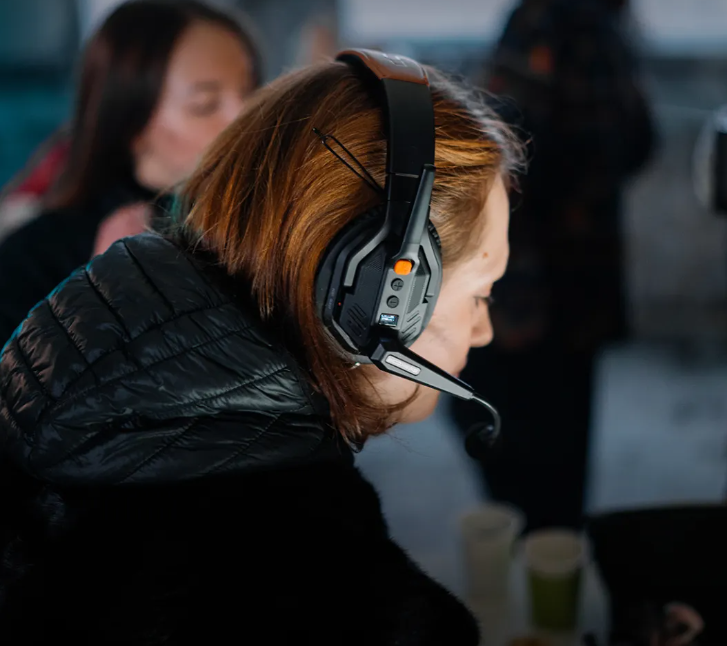
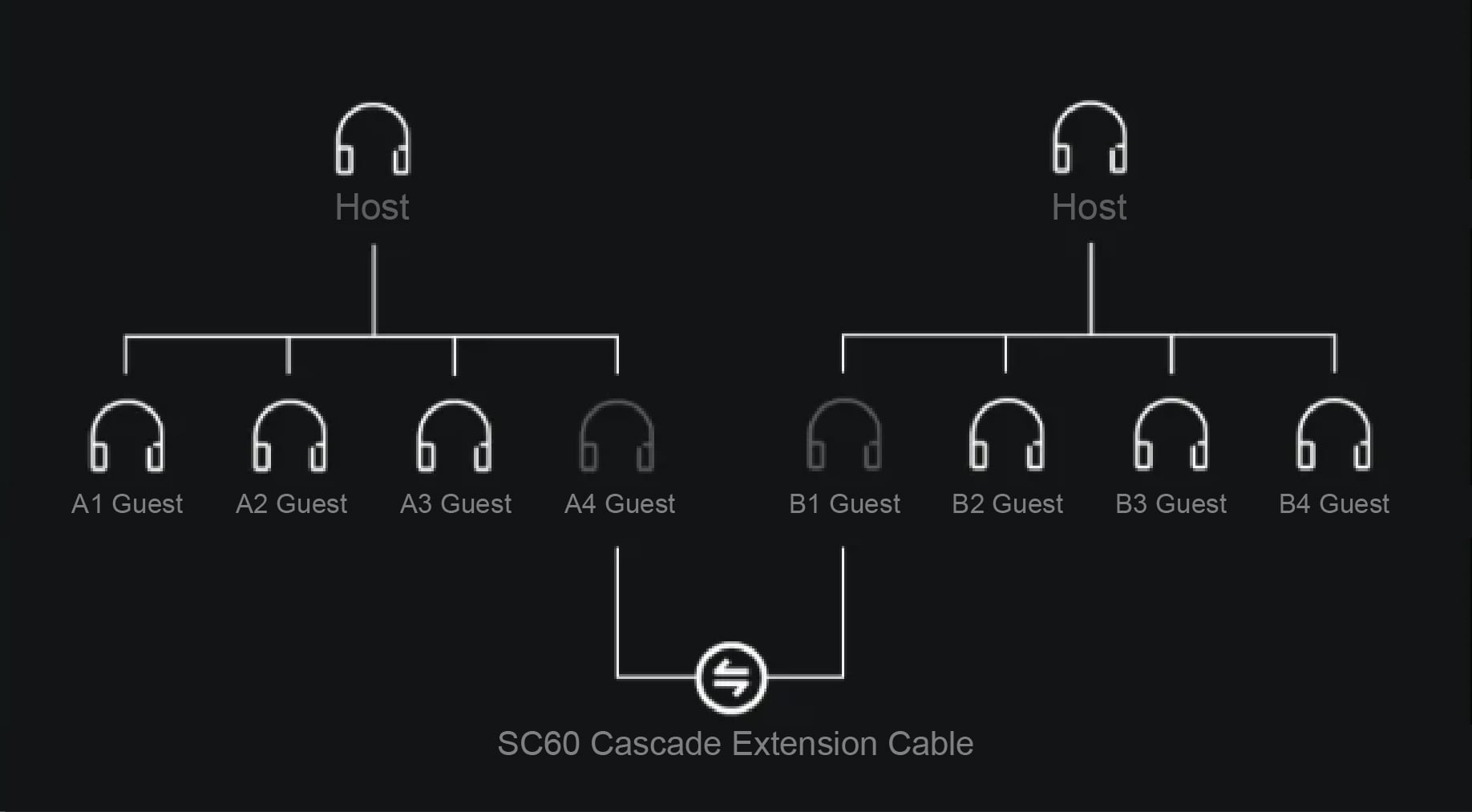
S1 | Firmware Upgrade & Cascade Extension
|
|
|
|
|
|
|
|
|
|
|
|
|
|